Before you start
- Your IPTV UK Fast login — emailed after you choose a plan or request a free trial.
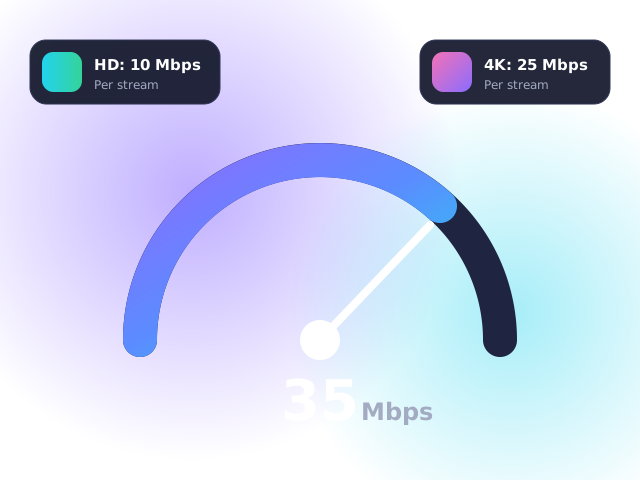
- A stable connection of at least 10 Mbps for HD or 25 Mbps for 4K. Not sure? Read what broadband speed you need for IPTV.
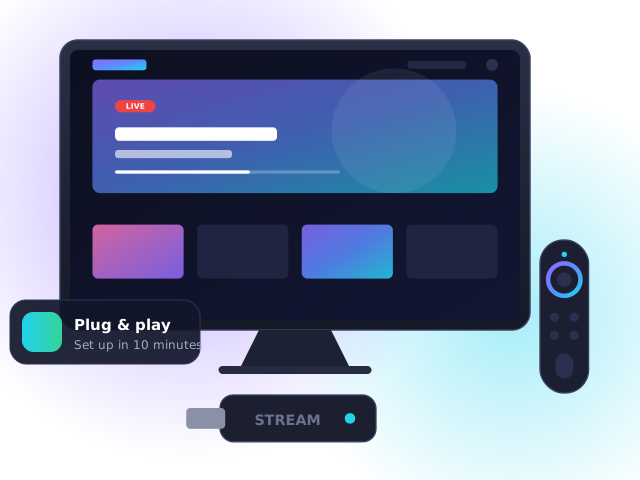
- A Fire TV device — Fire TV Stick (3rd gen or later), Fire TV Stick 4K, 4K Max or Fire TV Cube.
Step 1: Enable developer options
Amazon only lists some player apps outside its Appstore, so you first allow apps from trusted sources:
- From the Fire TV home screen, open Settings → My Fire TV → About.
- Highlight your device name and press the select button seven times until “You are now a developer” appears.
- Go back to My Fire TV → Developer options and turn on Install unknown apps for the Downloader app (install Downloader from the Amazon Appstore first if you have not already).
Only install apps from links we send you or from the official Amazon Appstore. Never enter your Amazon password into a third-party app.
Step 2: Install the recommended player app
- Open Downloader and type the short code or URL we include in your welcome email.
- Select Install when prompted, then Done. Choose Delete to remove the installer file and free up space.
- Hold the Home button, pick Apps and move the new player to your top row for quick access.
Step 3: Sign in and load your channels
- Open the player and choose Login with Xtream Codes API (sometimes called “Add user”).
- Enter the username, password and server URL from your email exactly as shown.
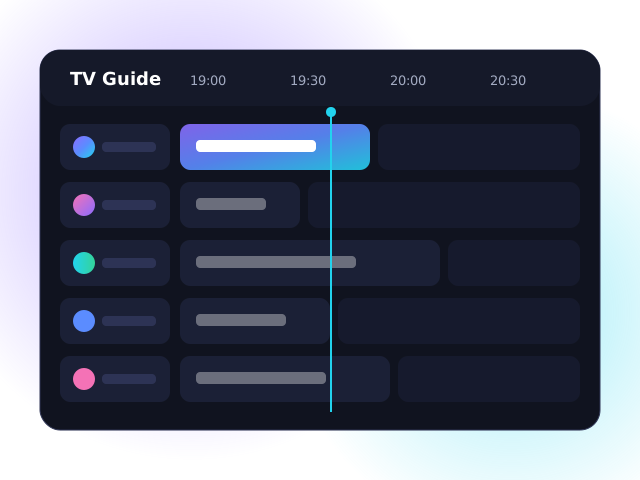
- Wait 30–60 seconds while channels, films and the programme guide download. That’s it — you are ready to watch.
Tips for the best picture
- Use the Fire TV Stick 4K Max if you can — its Wi-Fi 6E and faster processor make a real difference.
- Add an Amazon Ethernet adapter (around £15) if your router is close by — wired connections almost eliminate buffering.
- Every few weeks, go to Settings → Applications → Manage installed applications and clear the player’s cache.
- Plug the stick into the mains adapter rather than a TV USB port, which may not supply enough power.
Troubleshooting
- “Invalid login” error — check for spaces at the start or end of your username and password; they are case-sensitive.
- Channels load but freeze — restart the device and router, then switch to a wired connection or 5 GHz Wi-Fi. Our guide to fixing IPTV buffering walks through all eight fixes.
- TV guide is empty — open the app settings and choose “Update EPG”, then wait a minute for the guide to download.
- Still stuck? Contact our support team — we can guide you step by step.
Firestick IPTV FAQ
Which Firestick is best for IPTV in the UK?
The Fire TV Stick 4K Max offers the best performance for the price thanks to its faster processor and Wi-Fi 6E support. The standard Fire TV Stick works well for HD.
Is it safe to enable developer options on a Firestick?
Yes, provided you only install apps from trusted sources. Enabling developer options does not void your warranty or affect Amazon services.
Why does my Firestick say “Install unknown apps” is missing?
Newer Fire OS versions hide Developer options until you tap the device name seven times under Settings → My Fire TV → About.