Before you start
- Your IPTV UK Fast login — emailed after you choose a plan or request a free trial.
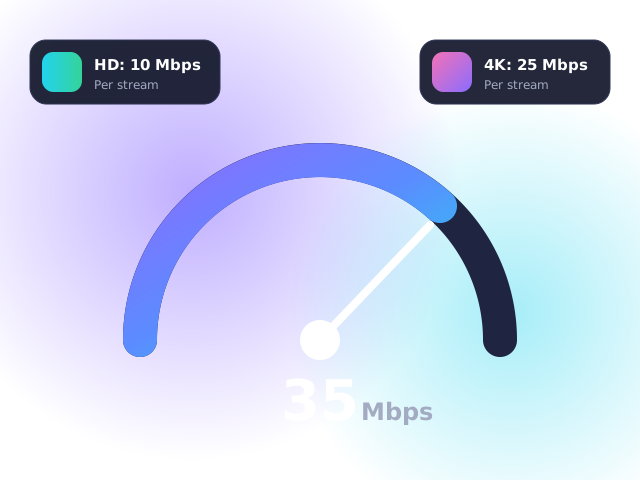
- A stable connection of at least 10 Mbps for HD or 25 Mbps for 4K. Not sure? Read what broadband speed you need for IPTV.
- An Android device running Android 8 or newer, signed in to Google Play.
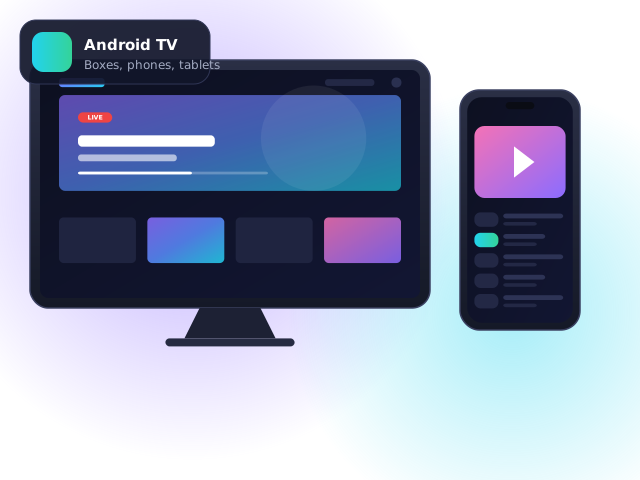
Android TV, Google TV & Nvidia Shield
- Open the Google Play Store on your TV or box and search for the player named in your welcome email.
- Install and open the app. Allow any permissions it asks for (storage is used for the TV guide).
- Choose Xtream Codes login and enter your username, password and server URL.
- The app downloads your channels and EPG. Use Favourites to build your own UK channel list.
Android phones & tablets
- Install the same player app from Google Play on your phone or tablet.
- Sign in with the same details — your favourites may sync, depending on the app.
- Use Chromecast or the cast button to send streams to a TV if you prefer.
Your plan includes one simultaneous connection. You can install it on your TV box and phone, but stop one stream before starting another — or ask us about multi-room.
Performance tips
- Set the player’s decoder to Hardware (HW+) for smooth 4K.
- On mobile data, choose SD or HD to save your allowance — 4K can use 7 GB an hour.
- Keep Android System WebView and the player app up to date.
Troubleshooting
- “Invalid login” error — check for spaces at the start or end of your username and password; they are case-sensitive.
- Channels load but freeze — restart the device and router, then switch to a wired connection or 5 GHz Wi-Fi. Our guide to fixing IPTV buffering walks through all eight fixes.
- TV guide is empty — open the app settings and choose “Update EPG”, then wait a minute for the guide to download.
- Still stuck? Contact our support team — we can guide you step by step.
Android IPTV FAQ
Which Android TV box is best for IPTV?
The Nvidia Shield TV Pro remains the fastest. For a budget choice, the Google TV Streamer or a Fire TV Stick 4K Max (which runs Android-based Fire OS) both perform well.
Can I watch on 4G or 5G?
Yes. HD streams use roughly 1.5–3 GB per hour, so an unlimited data plan is recommended for regular viewing.
Will it work on a Chromebook?
Most Chromebooks run Android apps from Google Play, so the same steps apply.